

Setting Up Assessment
Navigate to Quality Assessment from your project dashboard.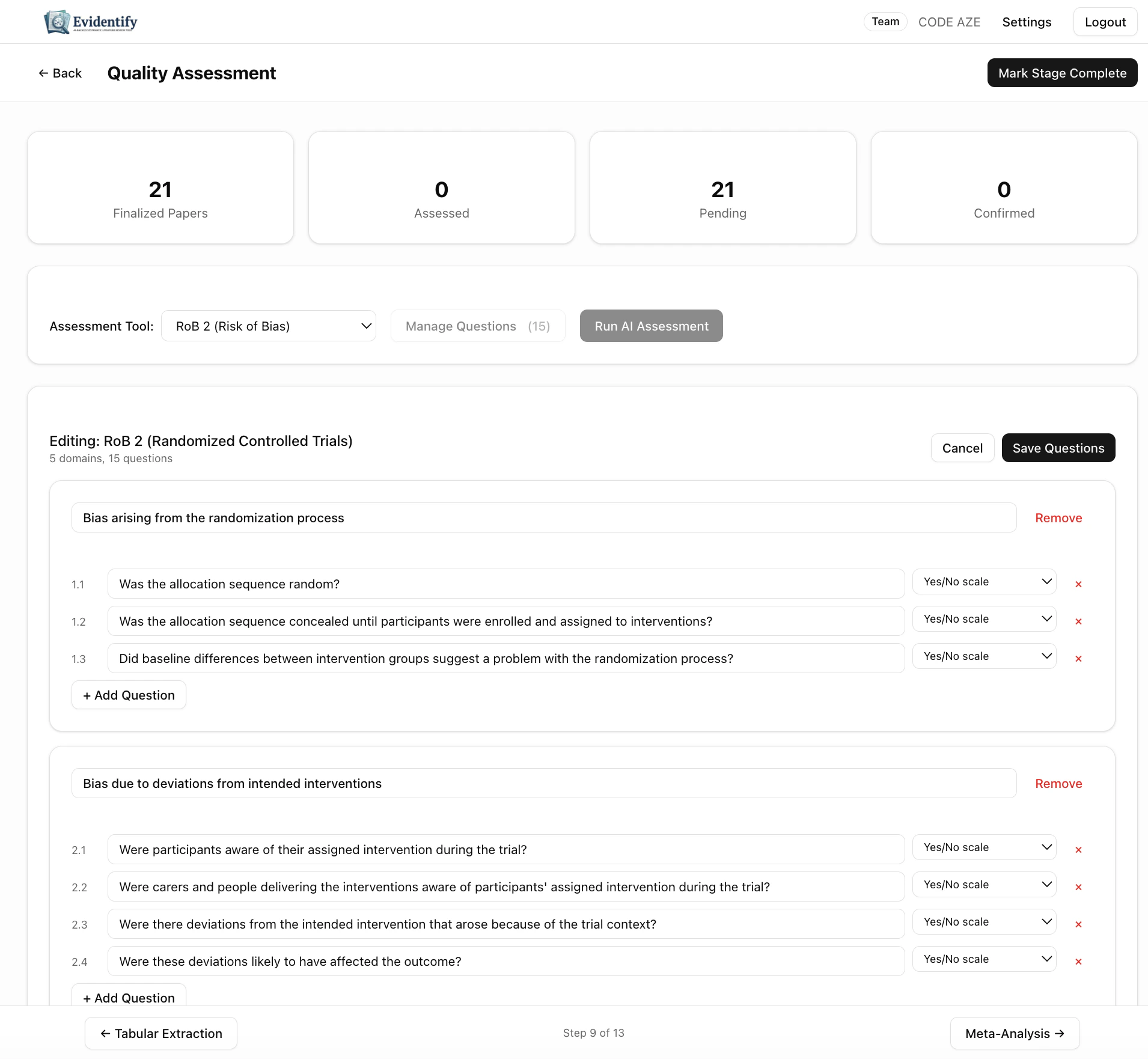
Stats Bar
Choose Your Assessment Tool
Select from the dropdown:Managing Questions
Click Manage Questions to view and customize the assessment domains and questions. Each domain contains specific questions. For example, RoB2 includes: Bias arising from the randomization process:- 1.1 Was the allocation sequence random?
- 1.2 Was the allocation sequence concealed?
- 1.3 Did baseline differences suggest a problem?
- 2.1 Were participants aware of their assignment?
- 2.2 Were carers aware of participants’ assignment?
- 2.3 Were there deviations from intended intervention?
- 2.4 Did deviations likely affect the outcome?
- Add questions to any domain
- Remove irrelevant questions
- Add domains for custom assessment criteria
- Choose rating scales (Yes/No, Low/Some concerns/High)
Running AI Assessment
Click Run AI Assessment to start. For each paper, the AI:- Reads the full text
- Evaluates each question in each domain
- Provides a rating (Low risk / Some concerns / High risk)
- Quotes the specific text from the paper that supports the rating
- Includes page and section references
- Explains its reasoning in plain language
Human Confirmation
Every AI assessment starts as a draft. Reviewers must:- Review each domain rating
- Check the quoted evidence against the source
- Confirm or override the AI’s judgment