Data extraction pulls specific information from each included paper into structured, analyzable tables. EviSyn lets you define custom extraction templates and uses AI to populate them automatically.

Creating an Extraction Template

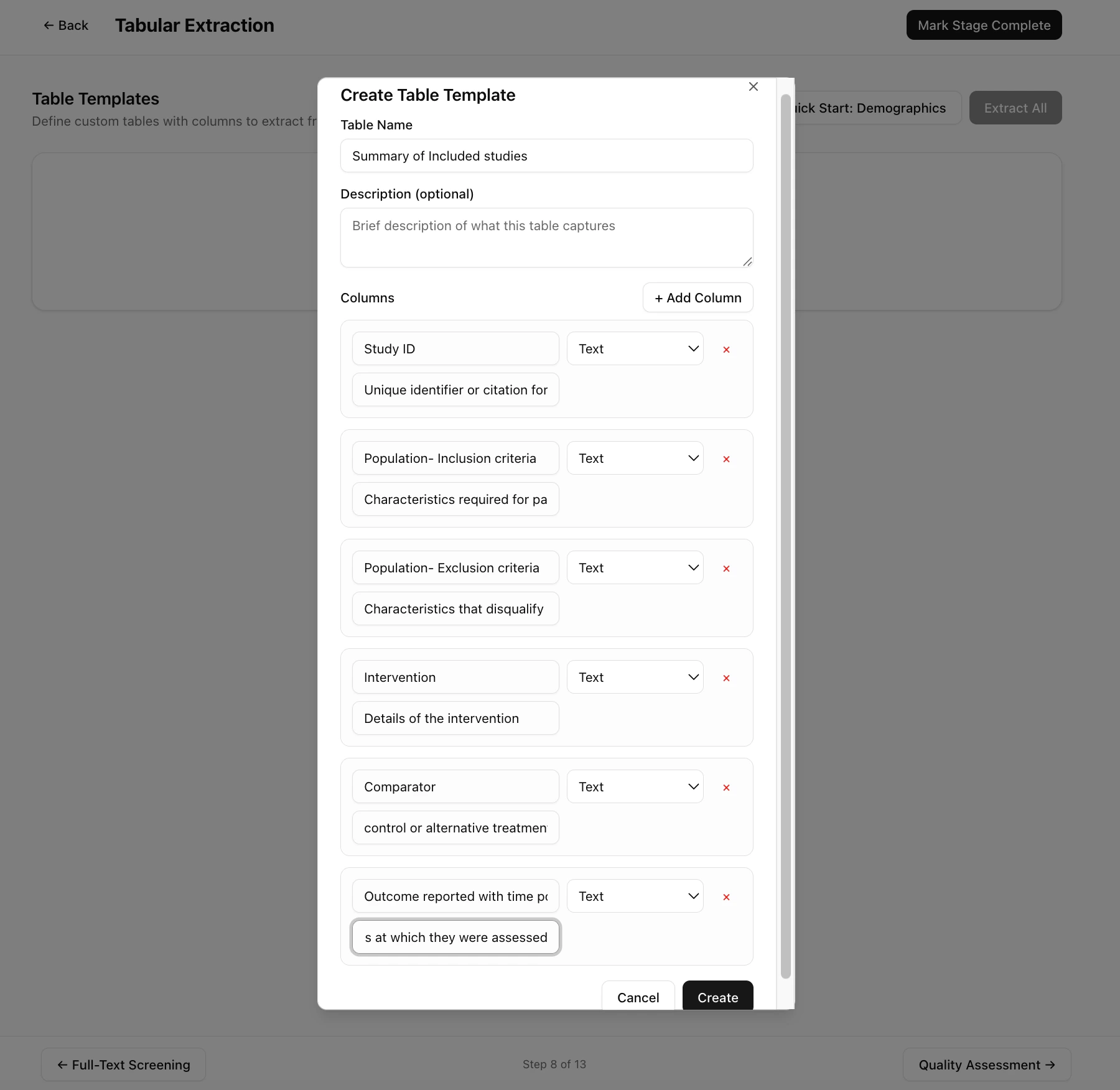
Navigate to Tabular Extraction from your project dashboard. Create table template Click Create New Table to define your extraction template.
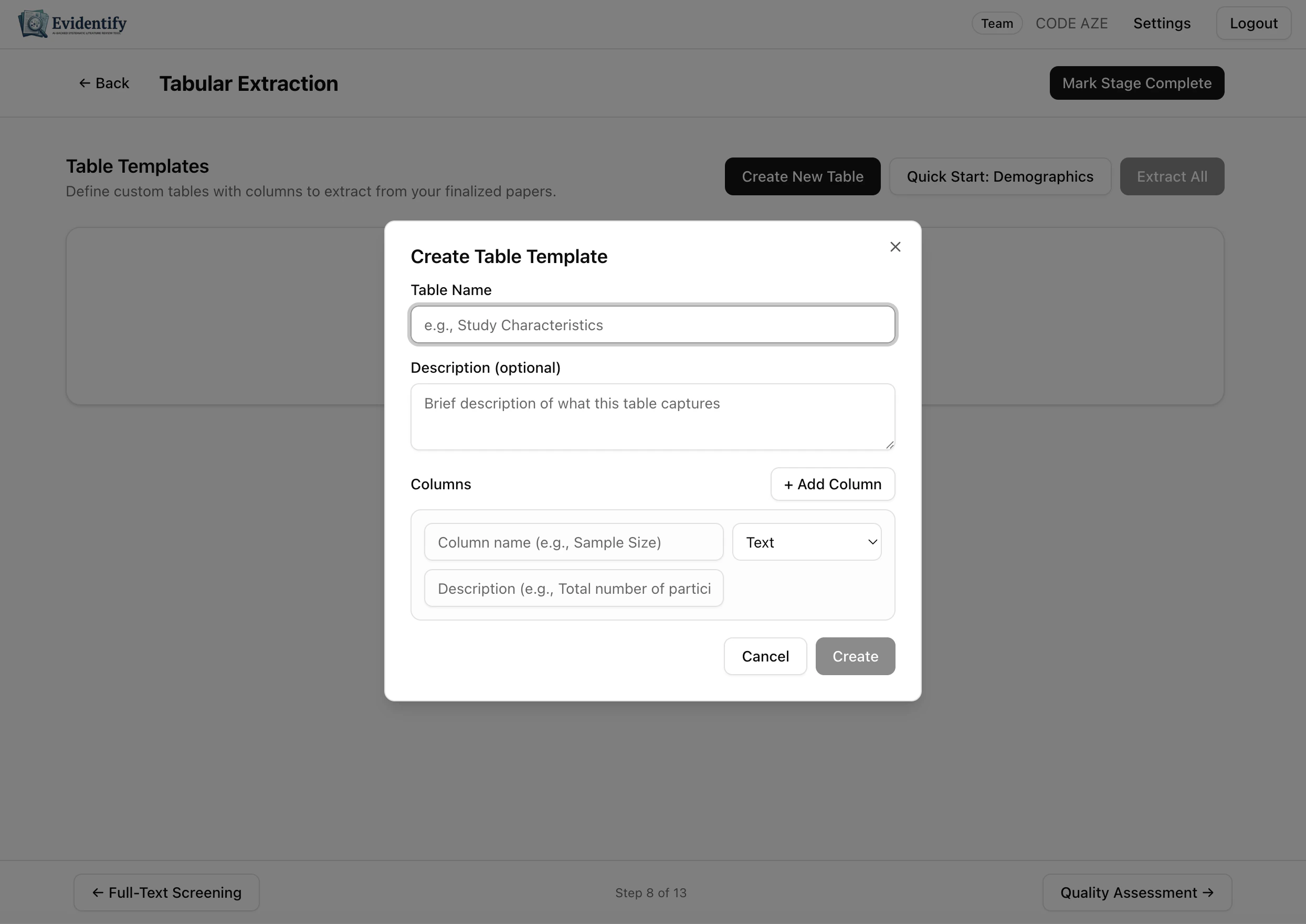
Template Builder

Template with custom columns Define the data you want to extract:
FieldDescription
Table NameDescriptive name (e.g., “Summary of Included Studies”)
DescriptionOptional: what this table captures
ColumnsThe data fields to extract from each paper

Adding Columns

For each column, specify:
  • Column Name — The data field (e.g., “Study ID”, “Population”, “Intervention”)
  • Data Type — Text, Number, or other types
  • Description — What to extract (helps the AI understand what you need)
Click + Add Column to add more fields.
Use the Quick Start: Demographics button to auto-populate a template with common demographic extraction fields.

Example Template

A typical “Summary of Included Studies” template might include:
ColumnDescription
Study IDUnique identifier or citation
Population - Inclusion criteriaCharacteristics required for participation
Population - Exclusion criteriaCharacteristics that disqualify
InterventionDetails of the intervention
ComparatorControl or alternative treatment
Outcome reported with time pointsResults at which time points they were assessed

Running AI Extraction

After creating your template: Template ready for extraction
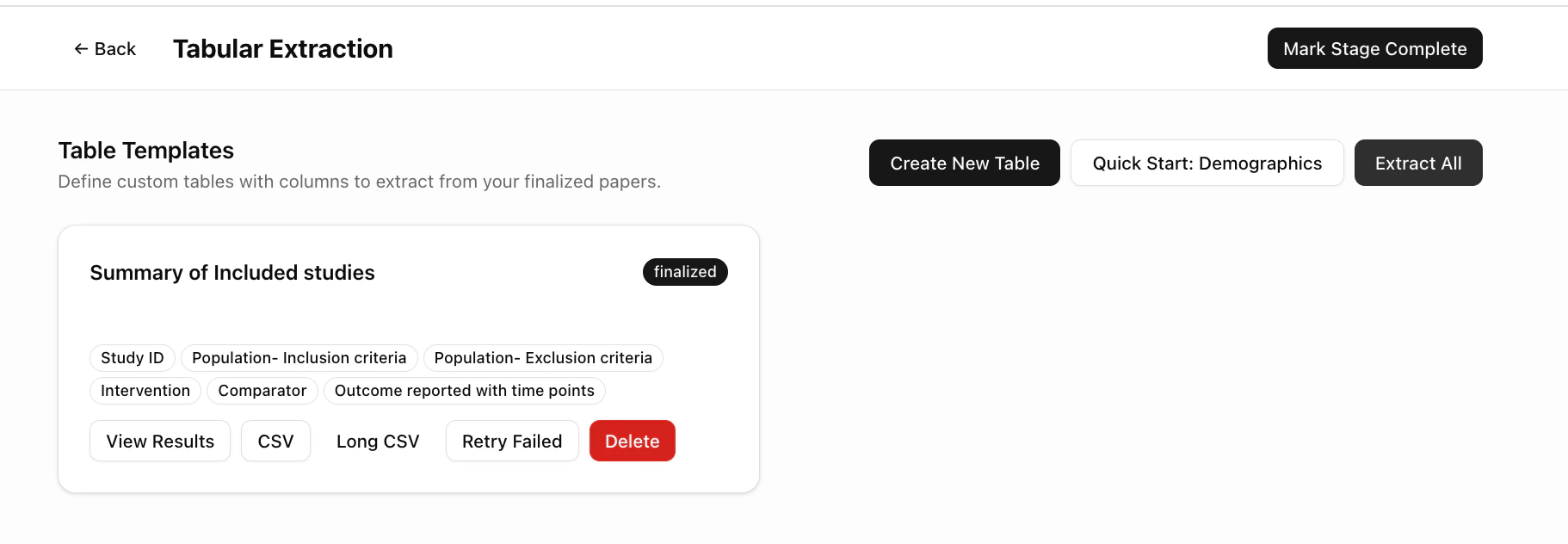
  1. Click Extract All to run AI extraction on all finalized papers
  2. The AI reads each paper’s full text and fills in every column
  3. Results appear in a structured table

Side-by-Side Review

Click View Results to see the extraction table alongside the source PDFs. Side-by-side extraction view with PDF The split view shows:
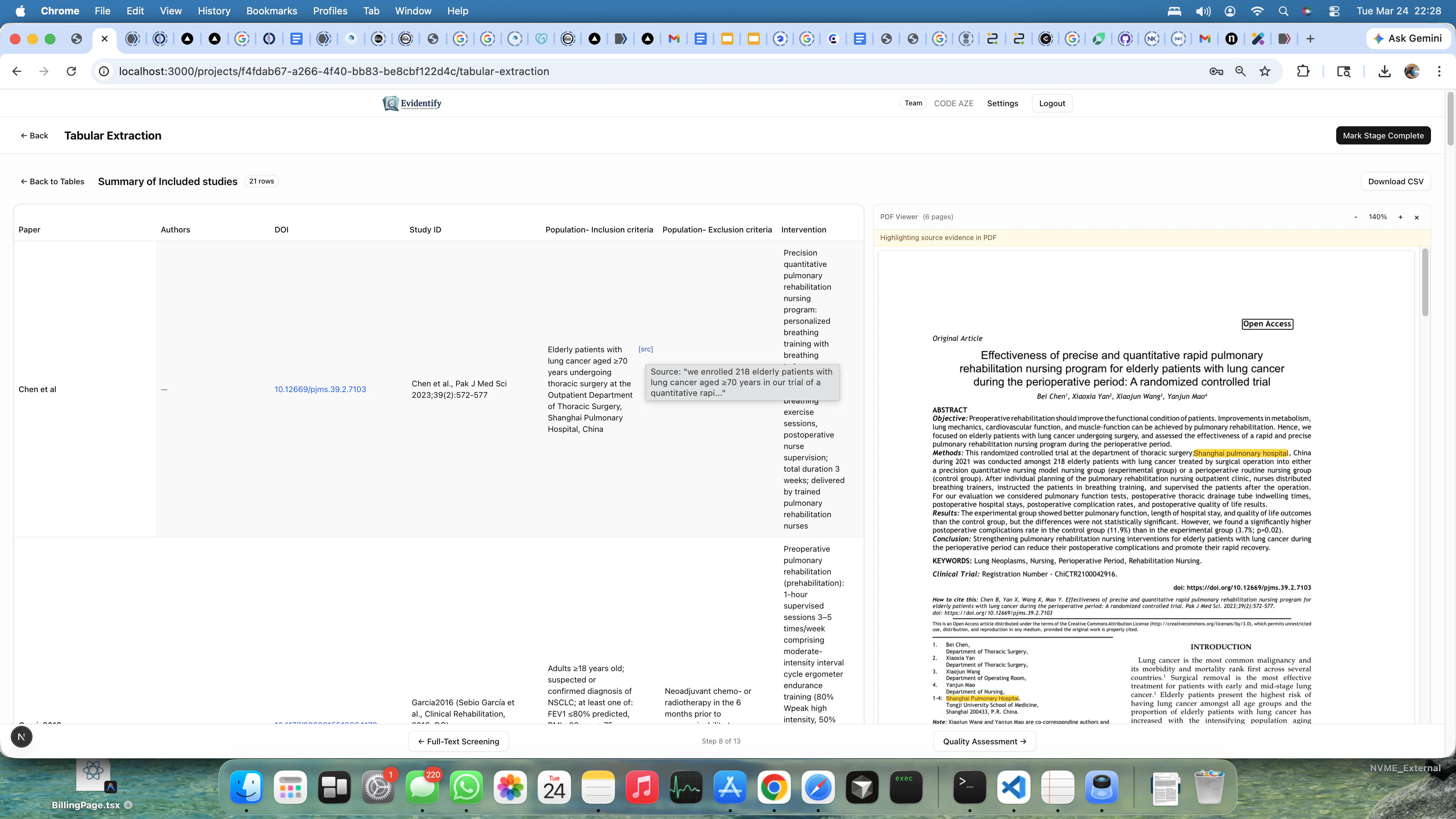
  • Left side — Extracted data in table format
  • Right side — The source PDF with highlighted passages
This lets you verify each extraction against the original paper.

Managing Results

ActionDescription
View ResultsSee the full extraction table
CSVExport as CSV for spreadsheet analysis
Long CSVExport in long format (one row per data point)
Retry FailedRe-extract papers where AI extraction failed
DeleteRemove this template and its extractions

What’s Next?

After data extraction, proceed to Quality Assessment to evaluate the risk of bias in your included studies.