

Creating Your First Project
From the My Projects dashboard, click the New Project button in the top right.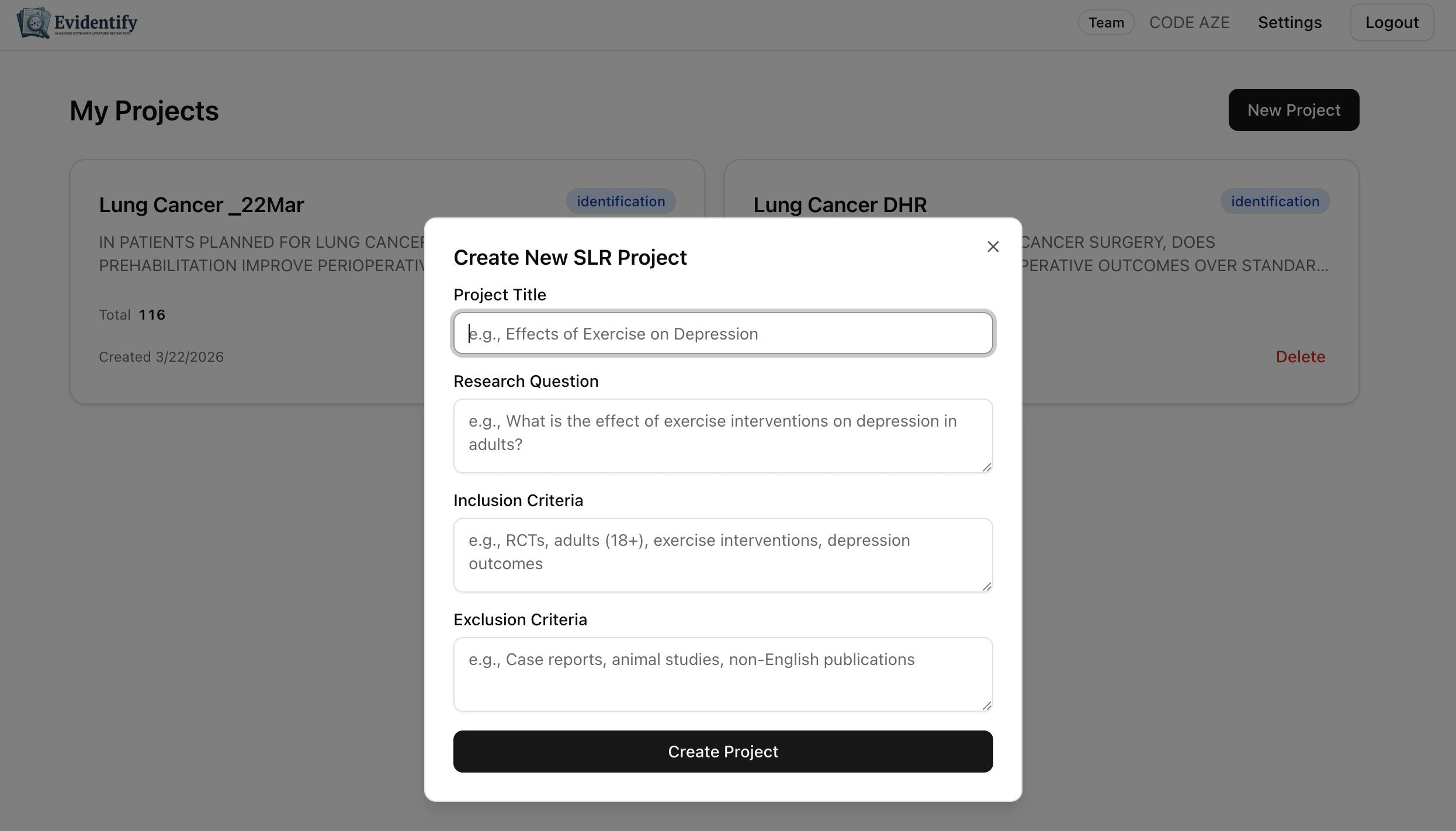
Required Fields
string
required
A short, descriptive name for your review. This appears on your dashboard and is used in exports.Example: “Lung Cancer Prehabilitation DHR”
string
required
Your full research question in plain language. The AI uses this to generate PICO terms and search queries.Example: “In patients planned for lung cancer surgery, does prehabilitation improve perioperative outcomes over standard of care?”
string
Define what types of studies should be included. Be specific about study design, population, and outcomes.Example: “RCTs, adults (18+), exercise interventions, depression outcomes”
string
Define what to exclude from your review.Example: “Single case studies, non-English publications”
Your Project Dashboard
After creation, you’ll land on the project overview page — your central hub for the entire review.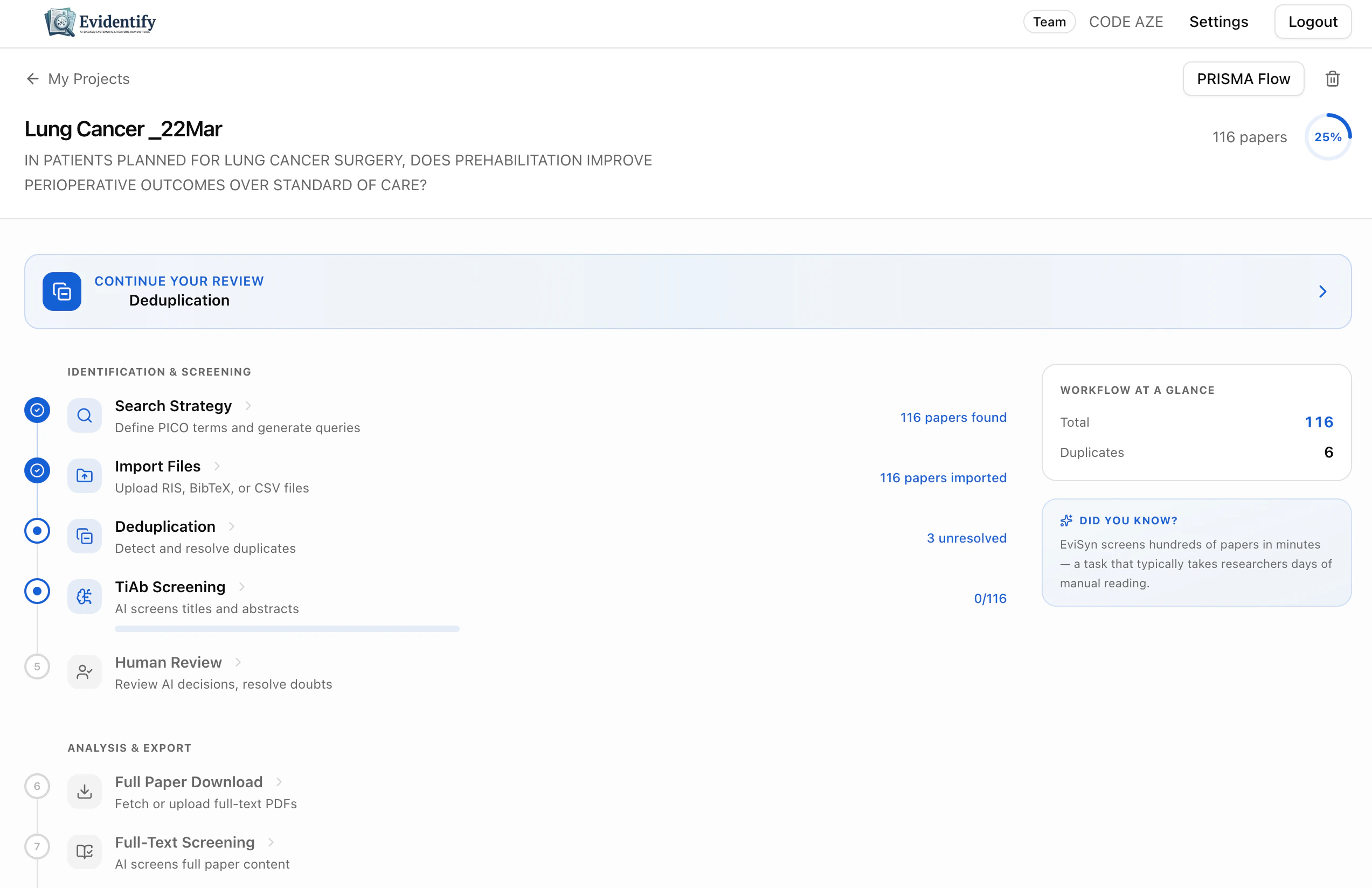
What You See
Research question & metadata
Research question & metadata
Your project title, research question, paper count, and completion percentage are displayed at the top. Click the lock icon to archive a completed project.
Workflow steps
Workflow steps
All 13 steps are listed in order with status indicators (green checkmark = complete, blue circle = in progress, grey = not started) and key metrics.
Workflow at a Glance
Workflow at a Glance
The sidebar shows live stats: total papers, duplicates found, AI screening results, and finalized count.
Managing Multiple Projects
Your dashboard shows all your projects as cards.- Project title
- Current PRISMA stage (e.g., “identification”)
- Paper count
- Creation date
- Delete button (removes the project and all its data)