> ## Documentation Index
> Fetch the complete documentation index at: https://docs-evisyn.grabmywork.com/llms.txt
> Use this file to discover all available pages before exploring further.
# Importing Papers
> Search databases directly or upload reference files to build your paper library
After generating your search strategy, import papers into your project. EviSyn supports both direct database searches and manual file uploads.
## Upload Files
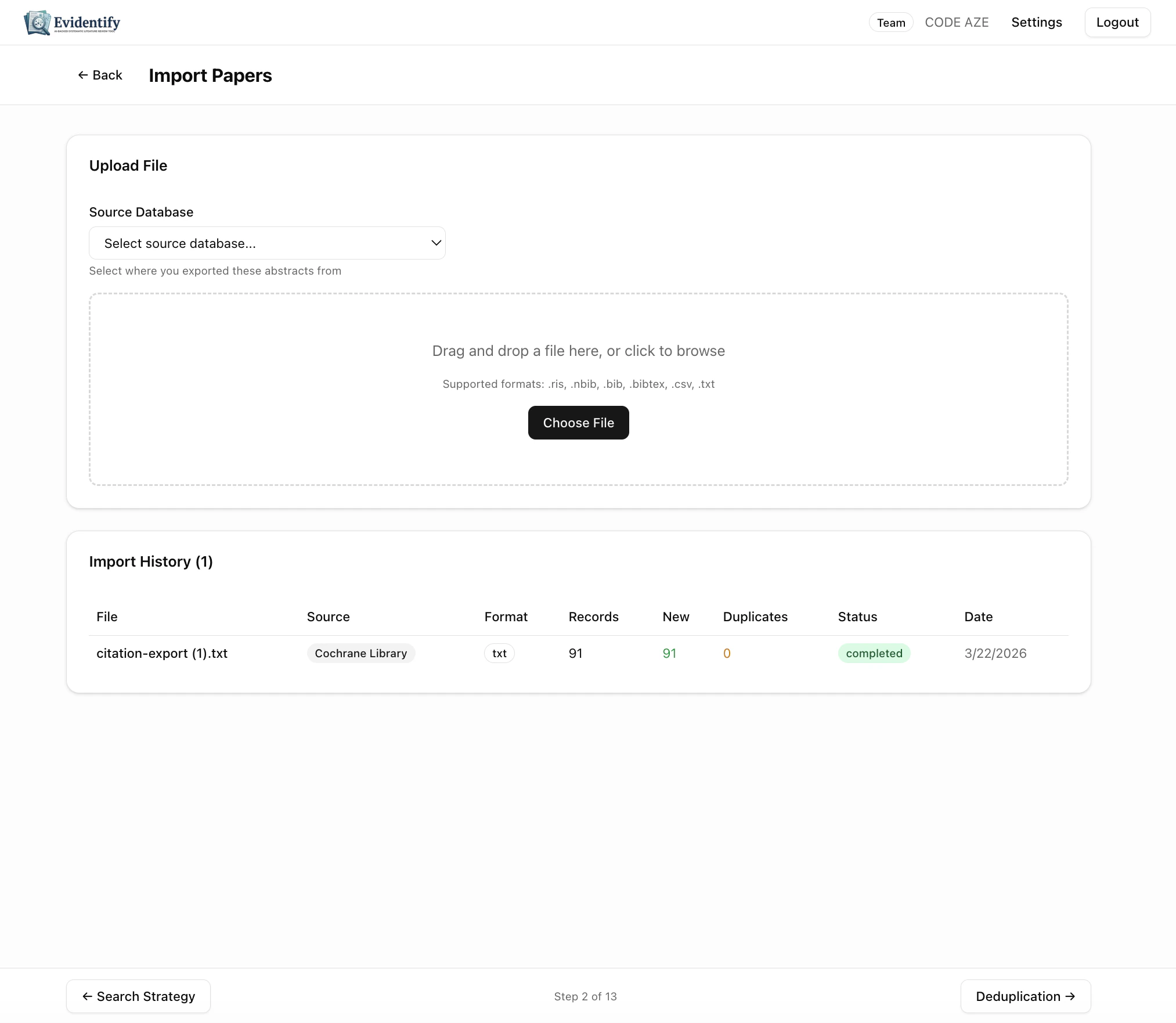
Navigate to **Import Files** from your project dashboard.
 ### Supported Formats
| Format | Extension | Common sources |
| ------ | ----------------- | ------------------------------------------------- |
| RIS | `.ris` | Most databases (Scopus, Web of Science, Cochrane) |
| BibTeX | `.bib`, `.bibtex` | LaTeX reference managers, Google Scholar |
| CSV | `.csv` | Spreadsheets, custom exports |
| Text | `.txt` | Plain text citation lists |
| NBIB | `.nbib` | PubMed exports |
### How to Upload
1. Select the **Source Database** from the dropdown (e.g., Cochrane Library, PubMed, Scopus)
2. **Drag and drop** your file into the upload zone, or click **Choose File**
3. EviSyn parses the file and imports papers with metadata
### Import History
The bottom section shows all previous imports with:
* Filename and source database
* Format detected
* Records found, new papers added, duplicates detected
* Status and date
### Supported Formats
| Format | Extension | Common sources |
| ------ | ----------------- | ------------------------------------------------- |
| RIS | `.ris` | Most databases (Scopus, Web of Science, Cochrane) |
| BibTeX | `.bib`, `.bibtex` | LaTeX reference managers, Google Scholar |
| CSV | `.csv` | Spreadsheets, custom exports |
| Text | `.txt` | Plain text citation lists |
| NBIB | `.nbib` | PubMed exports |
### How to Upload
1. Select the **Source Database** from the dropdown (e.g., Cochrane Library, PubMed, Scopus)
2. **Drag and drop** your file into the upload zone, or click **Choose File**
3. EviSyn parses the file and imports papers with metadata
### Import History
The bottom section shows all previous imports with:
* Filename and source database
* Format detected
* Records found, new papers added, duplicates detected
* Status and date
 ## Browsing Your Papers
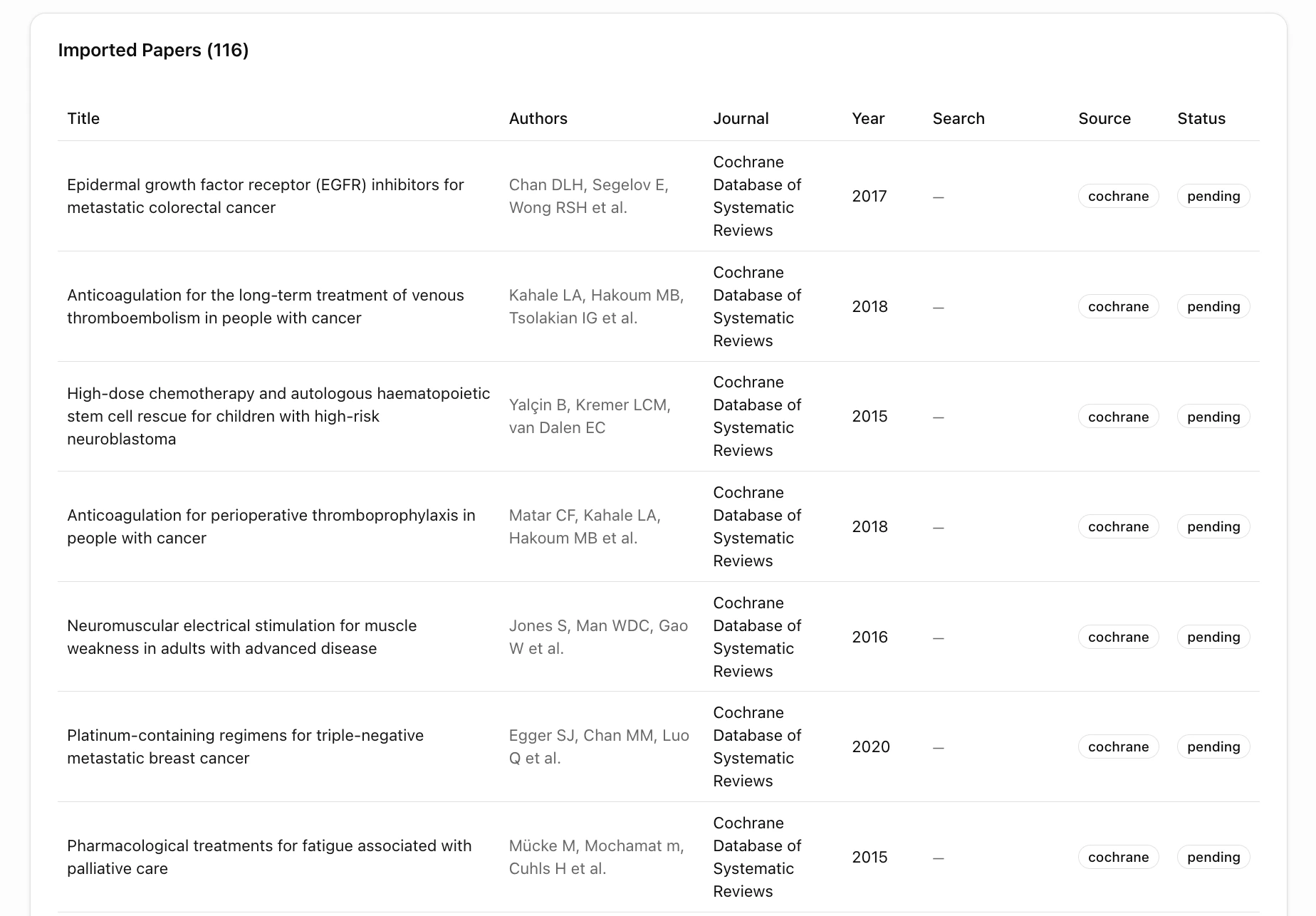
After import, browse your full paper library. Each paper shows:
| Column | Description |
| ----------- | ------------------------------------------------------ |
| **Title** | Full paper title (click to expand details) |
| **Authors** | Author list |
| **Journal** | Publication journal |
| **Year** | Publication year |
| **Search** | Which search imported this paper |
| **Source** | Original database (PubMed, Cochrane, etc.) |
| **Status** | Current screening status (pending, included, excluded) |
## Browsing Your Papers
After import, browse your full paper library. Each paper shows:
| Column | Description |
| ----------- | ------------------------------------------------------ |
| **Title** | Full paper title (click to expand details) |
| **Authors** | Author list |
| **Journal** | Publication journal |
| **Year** | Publication year |
| **Search** | Which search imported this paper |
| **Source** | Original database (PubMed, Cochrane, etc.) |
| **Status** | Current screening status (pending, included, excluded) |
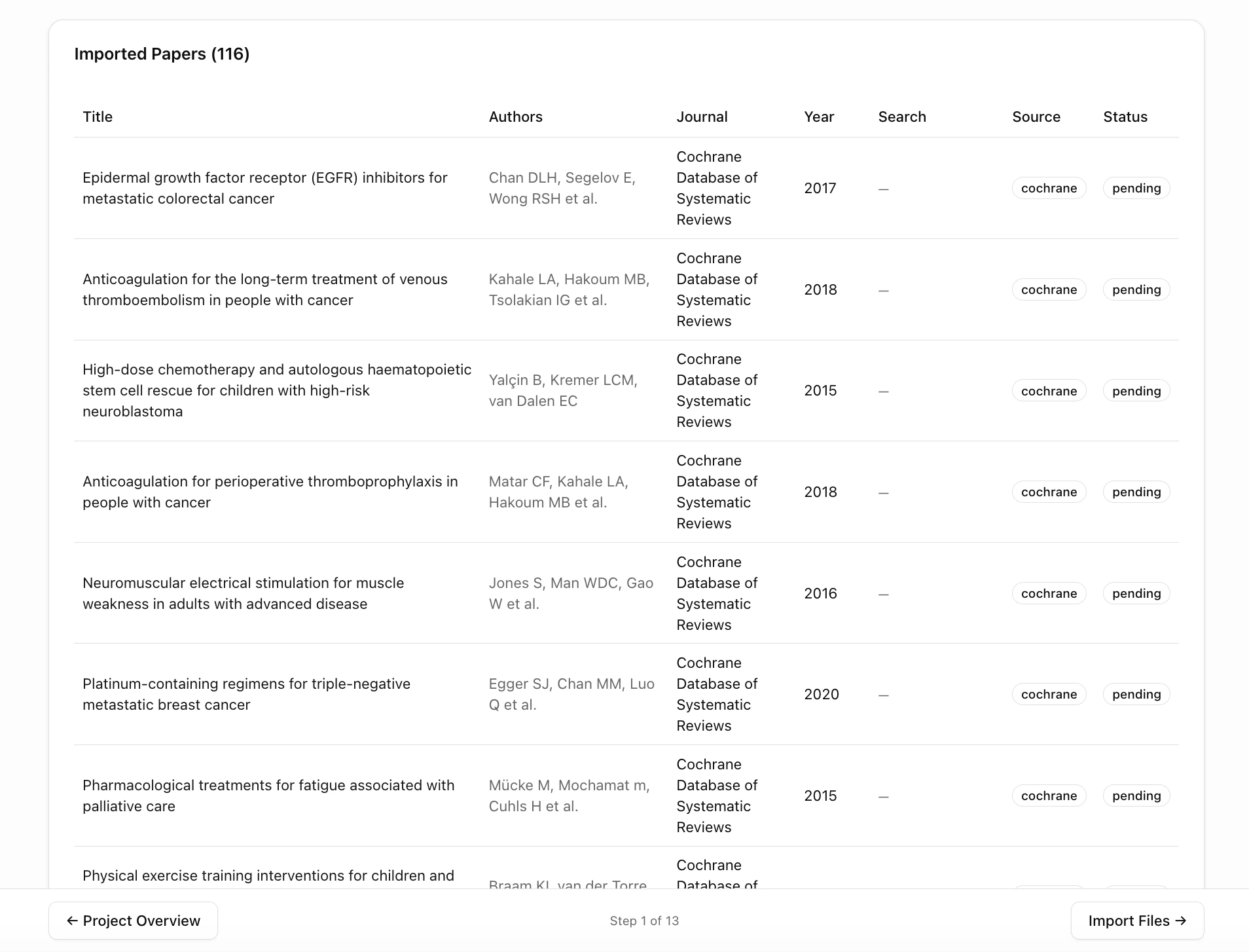 Use the navigation at the bottom to move between pages. Each page shows papers with full metadata.
## What's Next?
With papers imported, proceed to [Deduplication](/user-guide/deduplication) to detect and resolve duplicate records.
Use the navigation at the bottom to move between pages. Each page shows papers with full metadata.
## What's Next?
With papers imported, proceed to [Deduplication](/user-guide/deduplication) to detect and resolve duplicate records.