> ## Documentation Index
> Fetch the complete documentation index at: https://docs-evisyn.grabmywork.com/llms.txt
> Use this file to discover all available pages before exploring further.
# Creating a Project
> Set up your systematic review with a research question and criteria
## Creating Your First Project
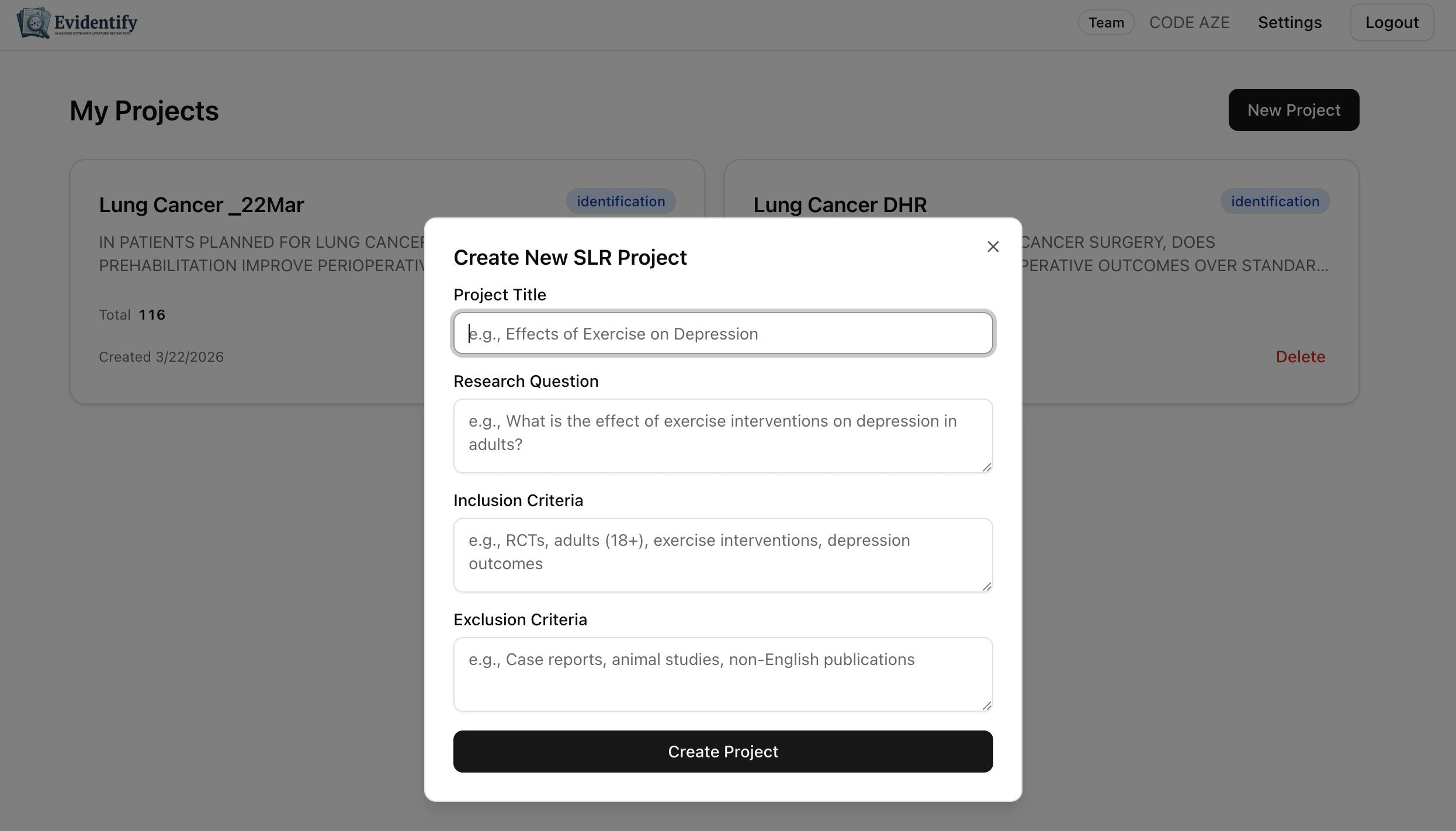
From the **My Projects** dashboard, click the **New Project** button in the top right.
 ### Required Fields
A short, descriptive name for your review. This appears on your dashboard and is used in exports.
**Example:** "Lung Cancer Prehabilitation DHR"
Your full research question in plain language. The AI uses this to generate PICO terms and search queries.
**Example:** "In patients planned for lung cancer surgery, does prehabilitation improve perioperative outcomes over standard of care?"
Define what types of studies should be included. Be specific about study design, population, and outcomes.
**Example:** "RCTs, adults (18+), exercise interventions, depression outcomes"
Define what to exclude from your review.
**Example:** "Single case studies, non-English publications"
Click **Create Project** to proceed.
## Your Project Dashboard
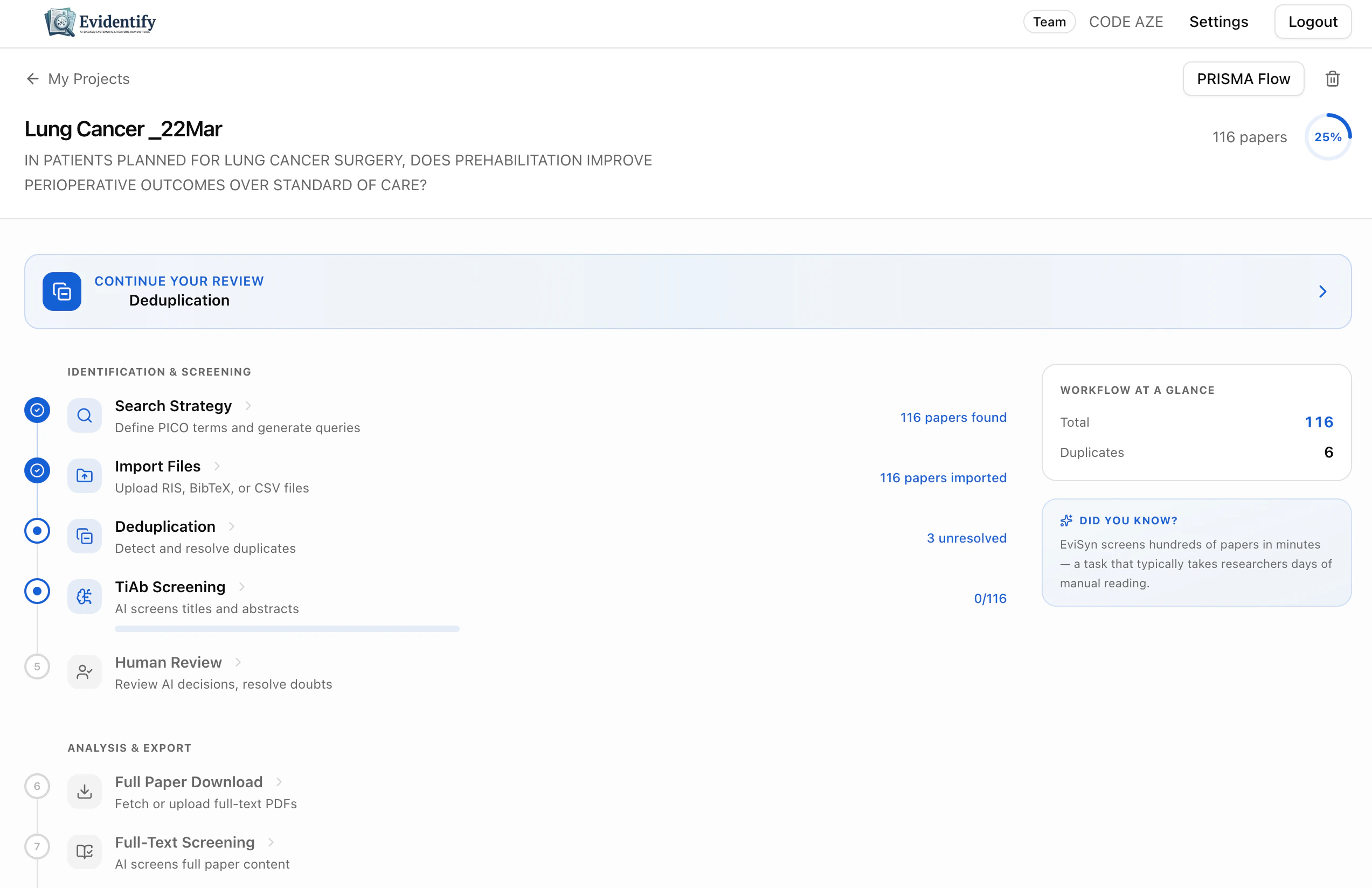
After creation, you'll land on the project overview page — your central hub for the entire review.
### Required Fields
A short, descriptive name for your review. This appears on your dashboard and is used in exports.
**Example:** "Lung Cancer Prehabilitation DHR"
Your full research question in plain language. The AI uses this to generate PICO terms and search queries.
**Example:** "In patients planned for lung cancer surgery, does prehabilitation improve perioperative outcomes over standard of care?"
Define what types of studies should be included. Be specific about study design, population, and outcomes.
**Example:** "RCTs, adults (18+), exercise interventions, depression outcomes"
Define what to exclude from your review.
**Example:** "Single case studies, non-English publications"
Click **Create Project** to proceed.
## Your Project Dashboard
After creation, you'll land on the project overview page — your central hub for the entire review.
 ### What You See
Your project title, research question, paper count, and completion percentage are displayed at the top. Click the lock icon to archive a completed project.
All 13 steps are listed in order with status indicators (green checkmark = complete, blue circle = in progress, grey = not started) and key metrics.
The blue banner at the top recommends your next step. Click it to jump directly there.
The sidebar shows live stats: total papers, duplicates found, AI screening results, and finalized count.
Click **PRISMA Flow** in the top right to view your auto-generated PRISMA 2020 flow diagram at any time.
## Managing Multiple Projects
Your dashboard shows all your projects as cards.
Each card shows:
* Project title
* Current PRISMA stage (e.g., "identification")
* Paper count
* Creation date
* **Delete** button (removes the project and all its data)
Deleting a project is permanent and removes all associated papers, screening decisions, extractions, and assessments. This action cannot be undone.
## What's Next?
Once your project is created, the next step is to [generate a search strategy](/user-guide/search-strategy).
### What You See
Your project title, research question, paper count, and completion percentage are displayed at the top. Click the lock icon to archive a completed project.
All 13 steps are listed in order with status indicators (green checkmark = complete, blue circle = in progress, grey = not started) and key metrics.
The blue banner at the top recommends your next step. Click it to jump directly there.
The sidebar shows live stats: total papers, duplicates found, AI screening results, and finalized count.
Click **PRISMA Flow** in the top right to view your auto-generated PRISMA 2020 flow diagram at any time.
## Managing Multiple Projects
Your dashboard shows all your projects as cards.
Each card shows:
* Project title
* Current PRISMA stage (e.g., "identification")
* Paper count
* Creation date
* **Delete** button (removes the project and all its data)
Deleting a project is permanent and removes all associated papers, screening decisions, extractions, and assessments. This action cannot be undone.
## What's Next?
Once your project is created, the next step is to [generate a search strategy](/user-guide/search-strategy).