> ## Documentation Index
> Fetch the complete documentation index at: https://docs-evisyn.grabmywork.com/llms.txt
> Use this file to discover all available pages before exploring further.
# AI Screening (Title & Abstract)
> Screen thousands of papers in minutes with transparent AI decisions
AI Screening is where EviSyn delivers the most dramatic time savings. The AI reads every paper's title and abstract and evaluates it against your inclusion criteria — a task that traditionally consumes **80-120 hours** for 5,000 papers.
## Setting Up Screening
Navigate to **TiAb Screening** from your project dashboard.
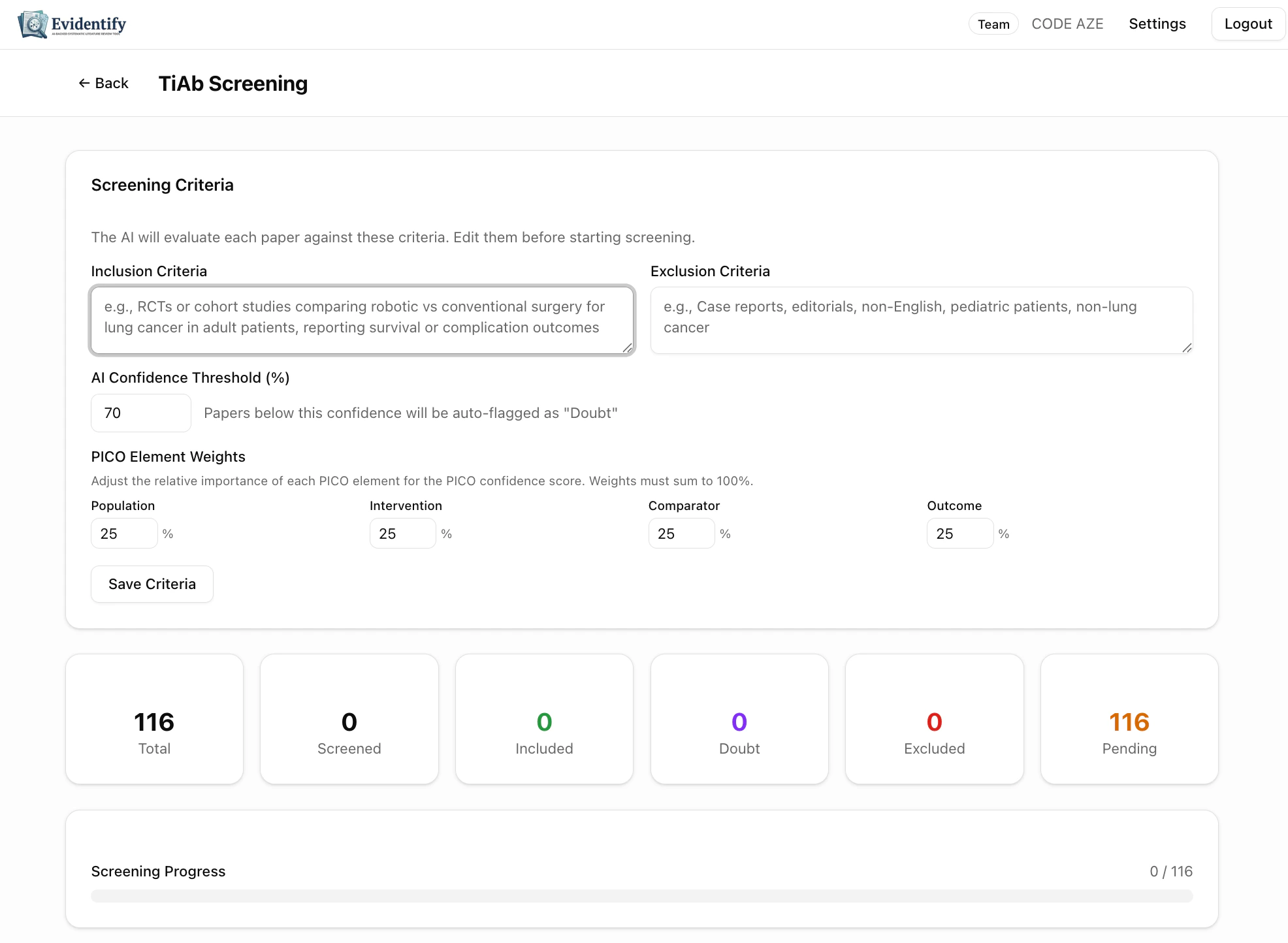 ### Configure Your Criteria
Before screening, review and customize:
What types of studies to include. Pre-filled from your project settings but editable here.
*Example: "RCTs or cohort studies comparing robotic vs conventional surgery for lung cancer in adult patients, reporting survival or complication outcomes"*
What to exclude from the review.
*Example: "Case reports, editorials, non-English, pediatric patients, non-lung cancer"*
Papers below this confidence score are auto-flagged as **"Doubt"** for priority human review. Default is 70%.
Adjust the relative importance of each PICO element in the overall confidence score. All weights must sum to 100%.
Default: Population 25%, Intervention 25%, Comparator 25%, Outcome 25%
Click **Save Criteria** to lock in your settings.
## Running AI Screening
The stats bar shows your screening progress in real-time:
### Configure Your Criteria
Before screening, review and customize:
What types of studies to include. Pre-filled from your project settings but editable here.
*Example: "RCTs or cohort studies comparing robotic vs conventional surgery for lung cancer in adult patients, reporting survival or complication outcomes"*
What to exclude from the review.
*Example: "Case reports, editorials, non-English, pediatric patients, non-lung cancer"*
Papers below this confidence score are auto-flagged as **"Doubt"** for priority human review. Default is 70%.
Adjust the relative importance of each PICO element in the overall confidence score. All weights must sum to 100%.
Default: Population 25%, Intervention 25%, Comparator 25%, Outcome 25%
Click **Save Criteria** to lock in your settings.
## Running AI Screening
The stats bar shows your screening progress in real-time:
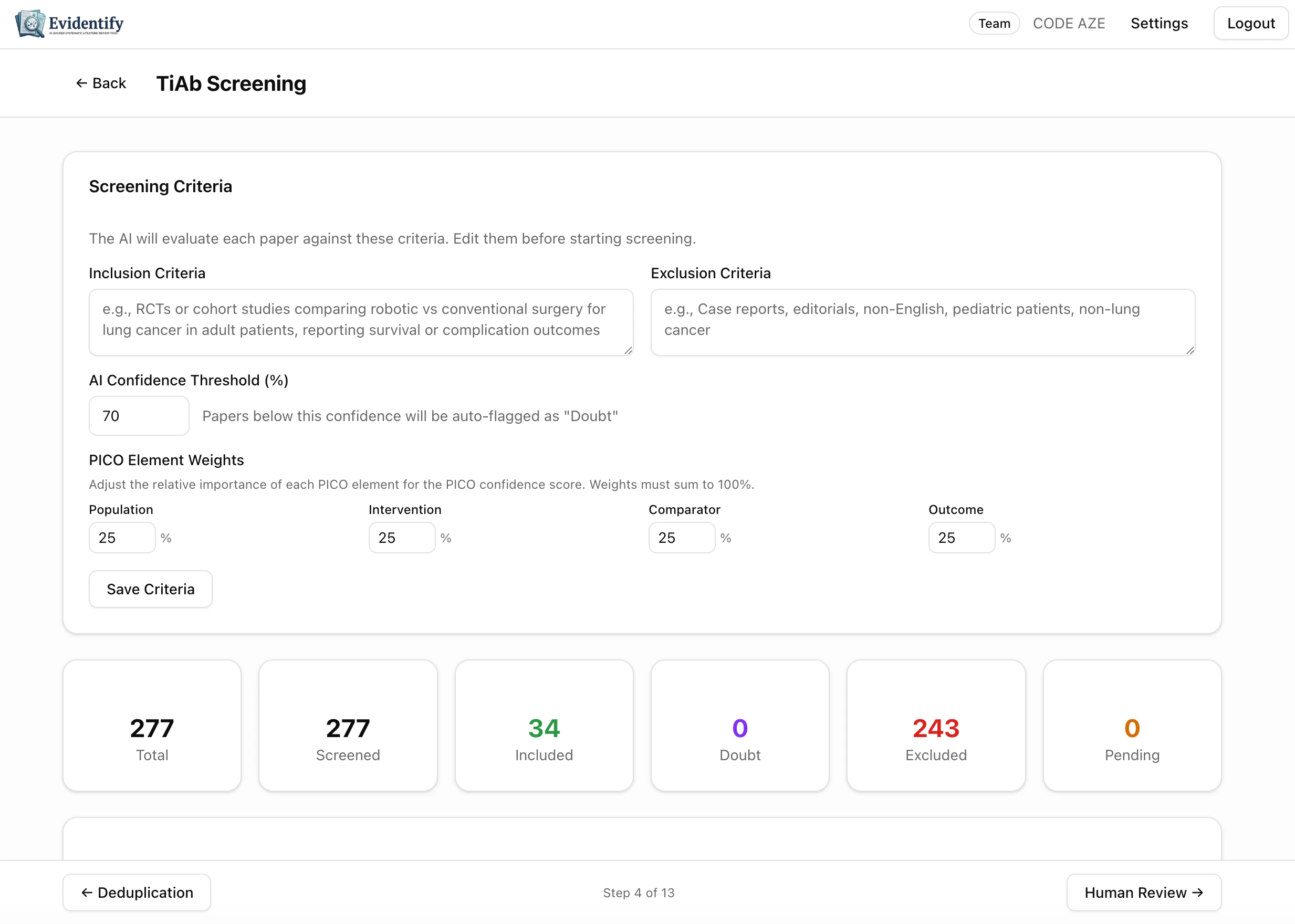 | Metric | Meaning |
| -------------------- | -------------------------------------- |
| **Total** | All papers in your library |
| **Screened** | Papers the AI has evaluated |
| **Included** (green) | Papers meeting your criteria |
| **Doubt** (orange) | Papers below your confidence threshold |
| **Excluded** (red) | Papers not meeting your criteria |
| **Pending** | Papers waiting to be screened |
Click **Screen All Pending** to start. The AI processes papers in batches.
## Understanding AI Decisions
Each paper gets a detailed, transparent decision.
| Metric | Meaning |
| -------------------- | -------------------------------------- |
| **Total** | All papers in your library |
| **Screened** | Papers the AI has evaluated |
| **Included** (green) | Papers meeting your criteria |
| **Doubt** (orange) | Papers below your confidence threshold |
| **Excluded** (red) | Papers not meeting your criteria |
| **Pending** | Papers waiting to be screened |
Click **Screen All Pending** to start. The AI processes papers in batches.
## Understanding AI Decisions
Each paper gets a detailed, transparent decision.
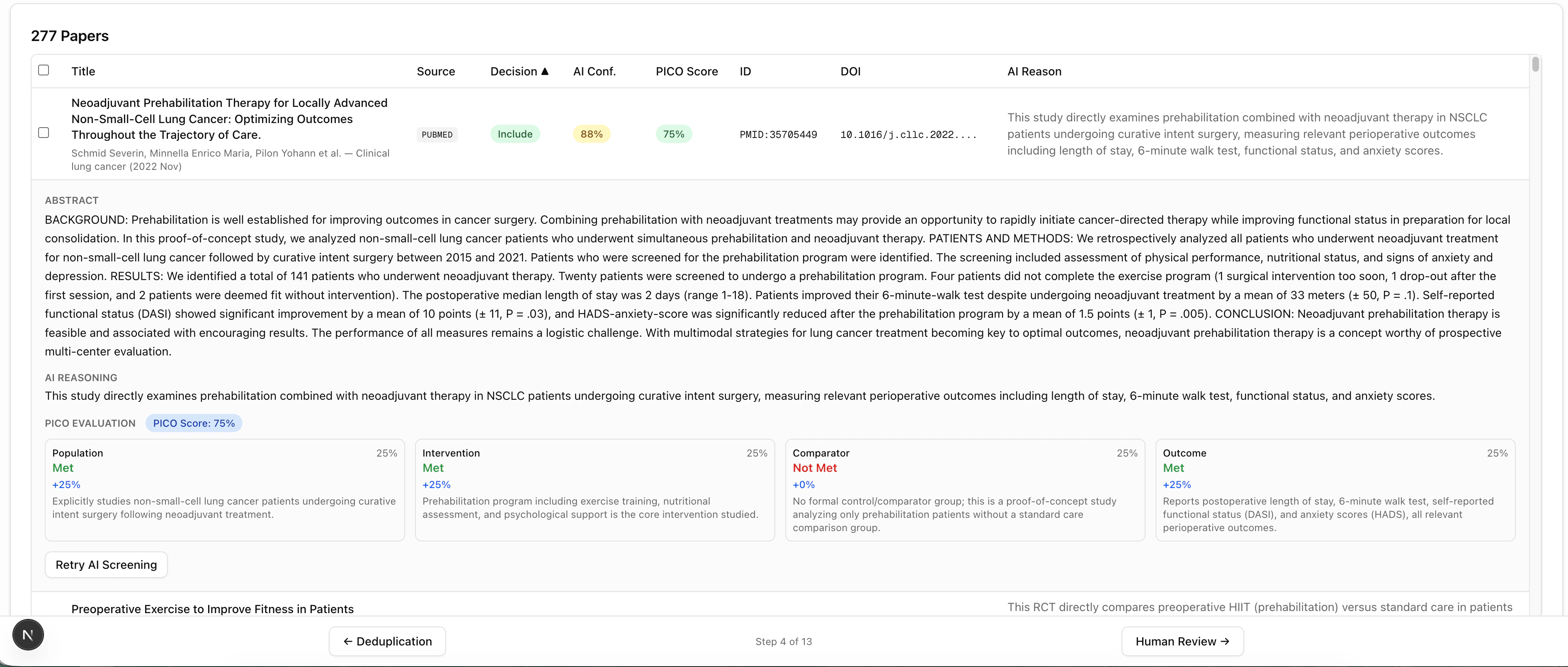 ### What the AI Shows for Each Paper
A clear recommendation. Colored tags make it easy to scan: green = include, red = exclude, orange = doubt.
How certain the AI is about its decision. Higher = more confident. Papers below your threshold are flagged as "Doubt" for priority review.
A composite score based on how well the paper matches each PICO element, weighted by your configured weights.
A plain-language explanation of why the paper was included or excluded, referencing specific parts of the title and abstract.
### Expanded Paper View
Click any paper to expand its full details:
### What the AI Shows for Each Paper
A clear recommendation. Colored tags make it easy to scan: green = include, red = exclude, orange = doubt.
How certain the AI is about its decision. Higher = more confident. Papers below your threshold are flagged as "Doubt" for priority review.
A composite score based on how well the paper matches each PICO element, weighted by your configured weights.
A plain-language explanation of why the paper was included or excluded, referencing specific parts of the title and abstract.
### Expanded Paper View
Click any paper to expand its full details:
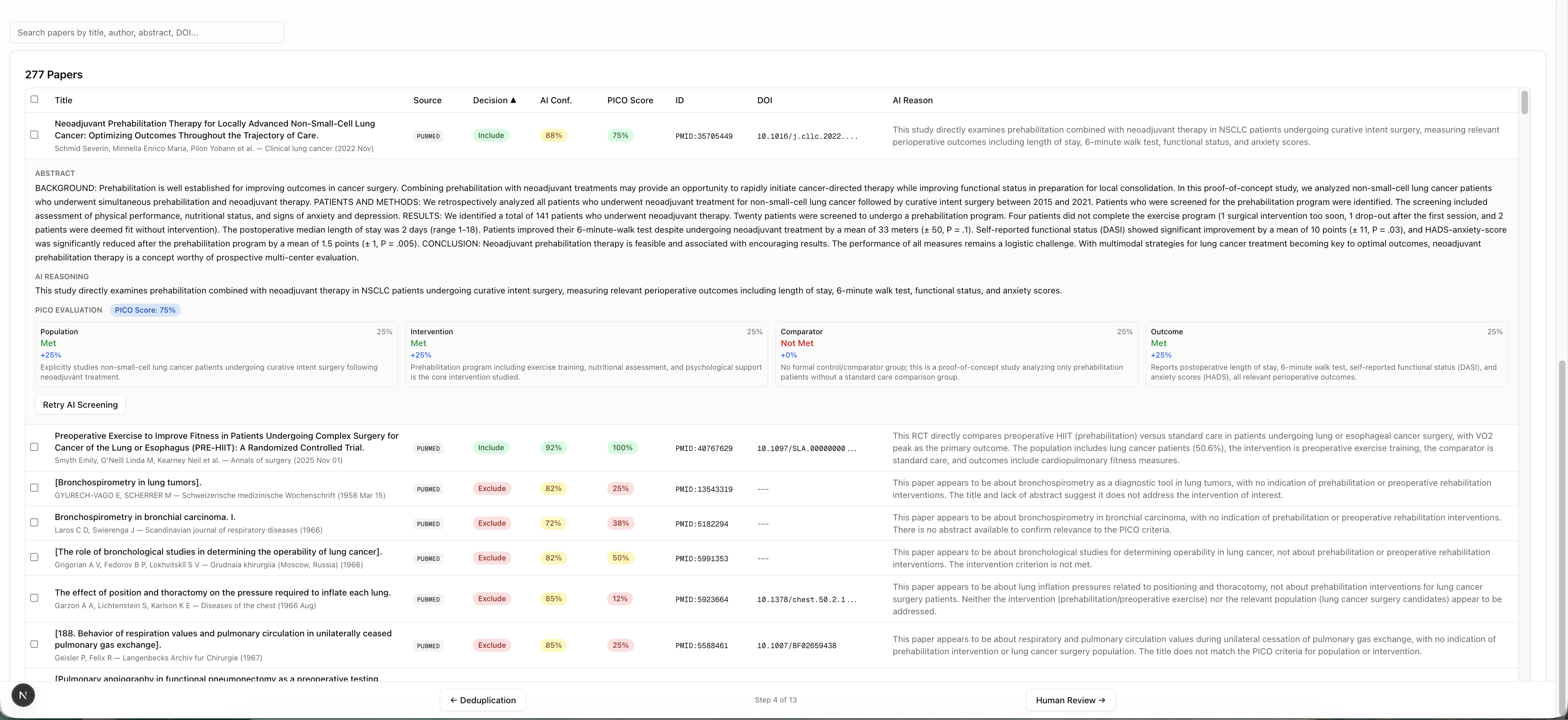 The expanded view shows:
* Full **abstract** text
* Complete **PICO evaluation** — for each criterion, whether the paper met, partially met, or did not meet the requirement
* The AI's detailed **reasoning** with specific references to the abstract content
## Filtering & Searching
Use the toolbar above the paper list to:
| Action | What it does |
| ------------------- | -------------------------------------------- |
| **Search** | Filter papers by title, author, journal, DOI |
| **Select Pending** | View only unscreened papers |
| **Select Doubts** | View only papers flagged as uncertain |
| **Select Excluded** | View only excluded papers |
| **Clear** | Reset all filters |
The expanded view shows:
* Full **abstract** text
* Complete **PICO evaluation** — for each criterion, whether the paper met, partially met, or did not meet the requirement
* The AI's detailed **reasoning** with specific references to the abstract content
## Filtering & Searching
Use the toolbar above the paper list to:
| Action | What it does |
| ------------------- | -------------------------------------------- |
| **Search** | Filter papers by title, author, journal, DOI |
| **Select Pending** | View only unscreened papers |
| **Select Doubts** | View only papers flagged as uncertain |
| **Select Excluded** | View only excluded papers |
| **Clear** | Reset all filters |
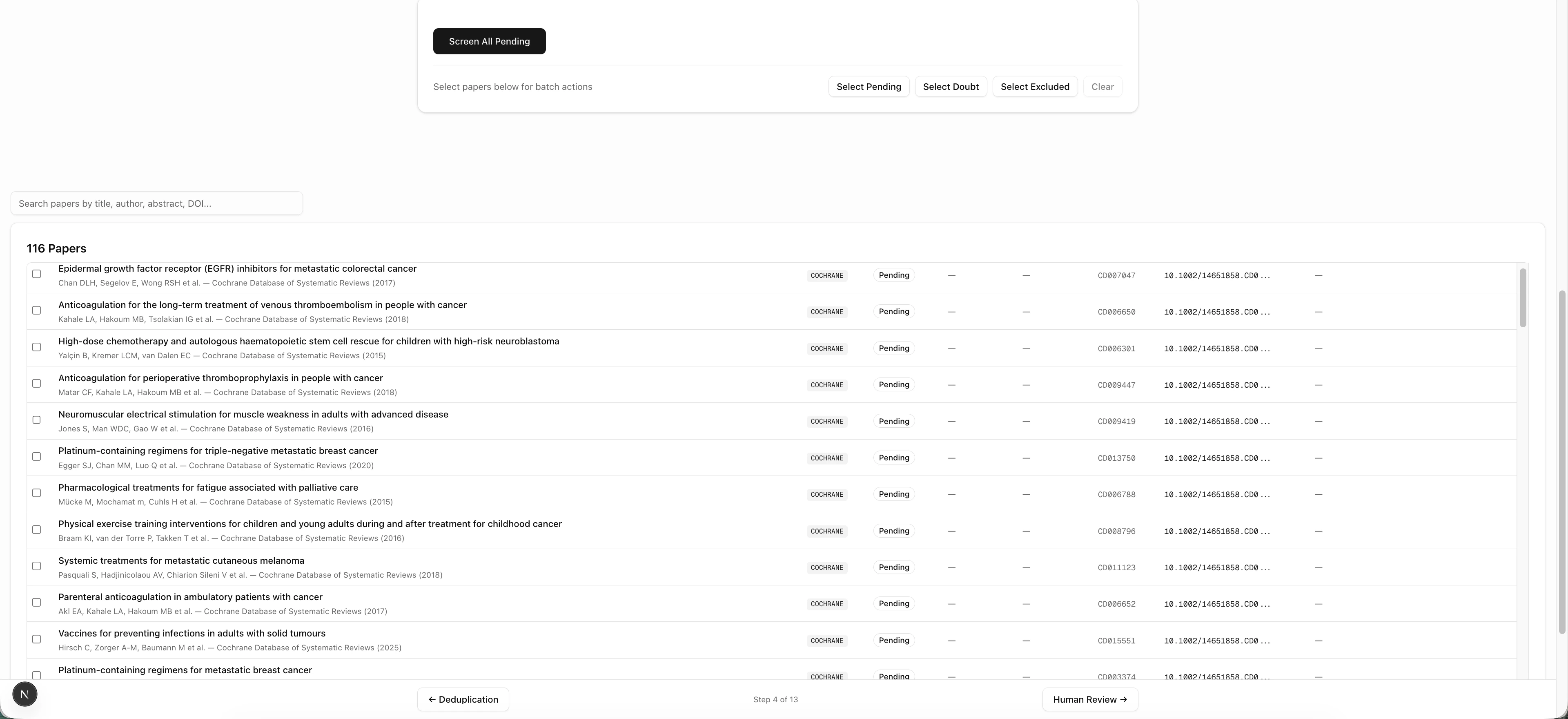 ## Batch Operations
* **Screen All Pending** — Screen all unscreened papers at once
* **Retry Selected** — Re-screen specific papers with updated criteria
Re-screening a paper overwrites its previous AI decision. The original decision is still preserved in the audit log.
## What's Next?
After AI screening, proceed to [Human Review](/user-guide/human-review) where expert reviewers verify the AI's decisions.
## Batch Operations
* **Screen All Pending** — Screen all unscreened papers at once
* **Retry Selected** — Re-screen specific papers with updated criteria
Re-screening a paper overwrites its previous AI decision. The original decision is still preserved in the audit log.
## What's Next?
After AI screening, proceed to [Human Review](/user-guide/human-review) where expert reviewers verify the AI's decisions.