> ## Documentation Index
> Fetch the complete documentation index at: https://docs-evisyn.grabmywork.com/llms.txt
> Use this file to discover all available pages before exploring further.
# Quickstart
> Create your first systematic review in 10 minutes
## Step 1: Create an Account
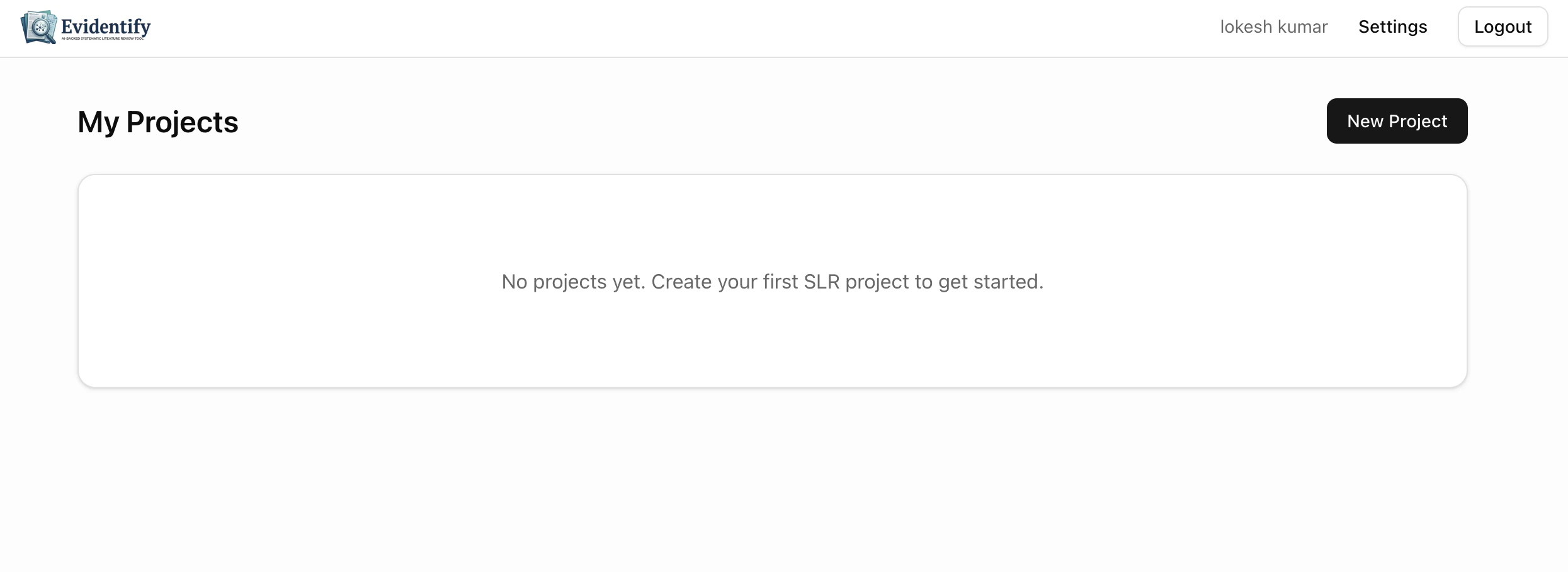
Sign up at [evisyn.grabmywork.com](https://evisyn.grabmywork.com) with your email. You'll land on your **My Projects** dashboard.
 The Free plan gives you **1 project**, **10 papers/month**, and **10 AI screenings** — enough to try out the full workflow.
## Step 2: Create a New Project
Click **New Project** and fill in:
The Free plan gives you **1 project**, **10 papers/month**, and **10 AI screenings** — enough to try out the full workflow.
## Step 2: Create a New Project
Click **New Project** and fill in:
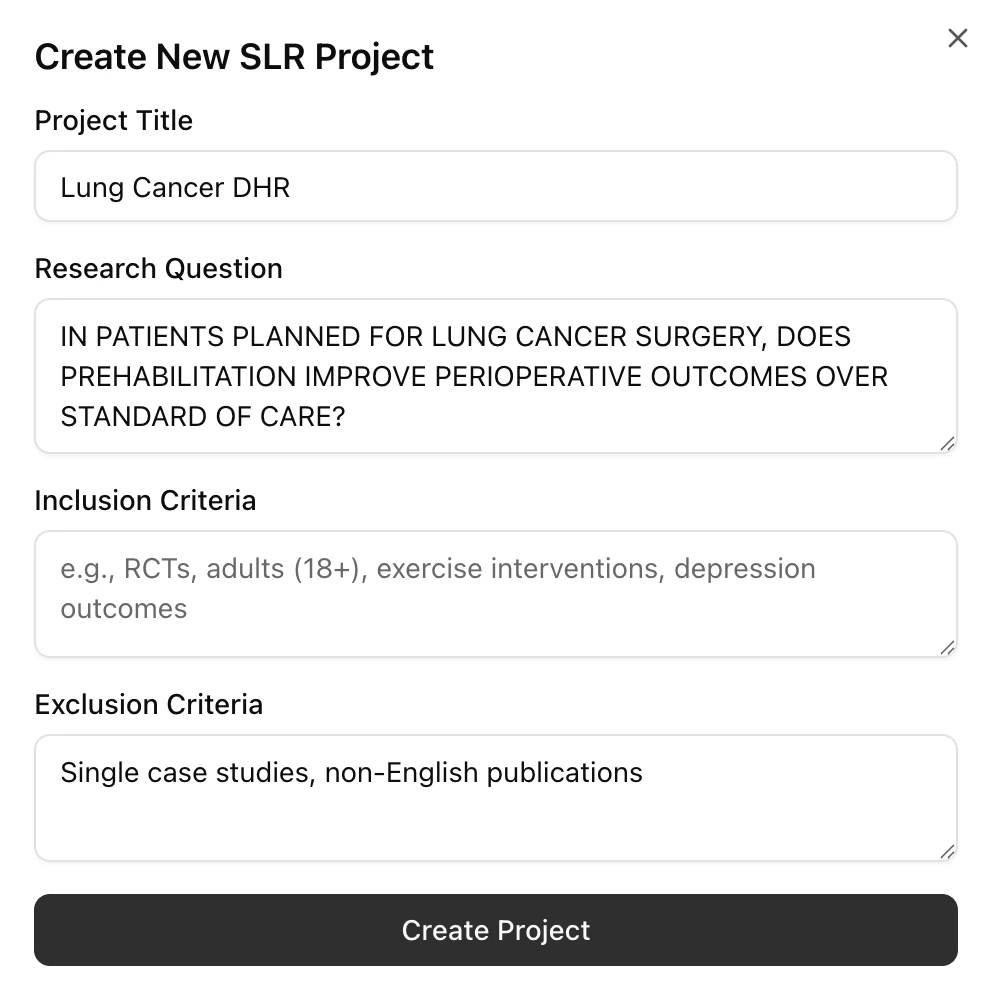 | Field | What to enter |
| ---------------------- | ------------------------------------------------------------------ |
| **Project Title** | A short name for your review (e.g., "Lung Cancer Prehabilitation") |
| **Research Question** | Your full research question in plain language |
| **Inclusion Criteria** | What types of studies to include (e.g., RCTs, adults 18+) |
| **Exclusion Criteria** | What to exclude (e.g., case reports, non-English) |
Click **Create Project** and you'll be taken to your project overview.
## Step 3: Your Project Dashboard
This is your home base. The dashboard shows all 13 workflow steps with progress tracking.
| Field | What to enter |
| ---------------------- | ------------------------------------------------------------------ |
| **Project Title** | A short name for your review (e.g., "Lung Cancer Prehabilitation") |
| **Research Question** | Your full research question in plain language |
| **Inclusion Criteria** | What types of studies to include (e.g., RCTs, adults 18+) |
| **Exclusion Criteria** | What to exclude (e.g., case reports, non-English) |
Click **Create Project** and you'll be taken to your project overview.
## Step 3: Your Project Dashboard
This is your home base. The dashboard shows all 13 workflow steps with progress tracking.
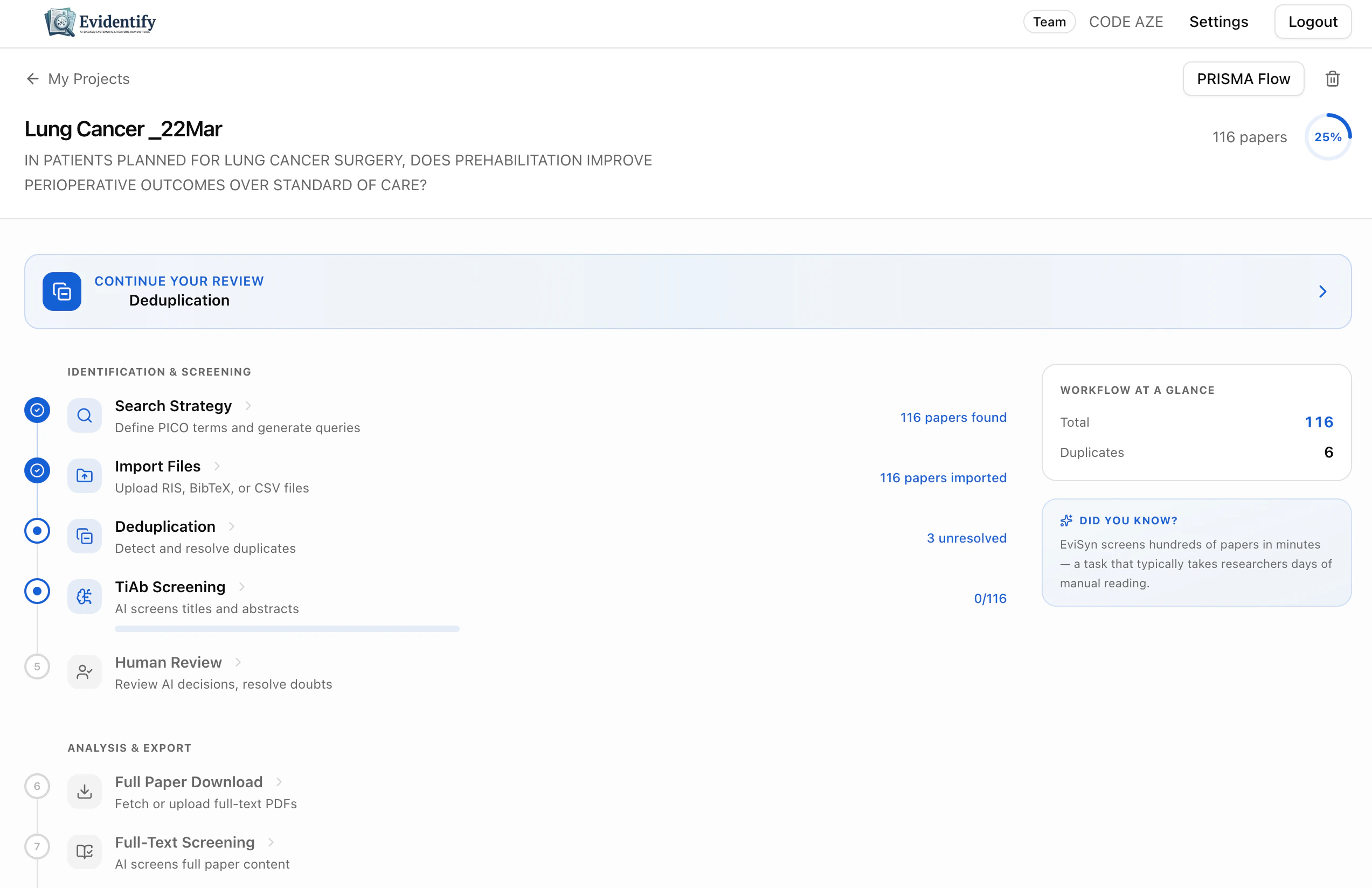 The blue **"Continue Your Review"** banner at the top always tells you what to do next.
The **Workflow at a Glance** sidebar shows key stats: total papers, duplicates, AI included/excluded, and finalized count.
## Step 4: Generate a Search Strategy
Click **Search Strategy** to have the AI build your search.
1. Your research question is pre-filled
2. Choose your framework: **PICO (Quantitative)** or **PICo (Qualitative)**
3. Select scope: **Broad** or **Narrow**
4. Pick target databases (PubMed is available on all plans)
5. Click **Generate PICO Strategy (AI)**
The AI will decompose your question into PICO terms and generate database-specific queries. See the full [Search Strategy guide](/user-guide/search-strategy) for details.
## Step 5: Import Papers
You can either:
* **Execute a PubMed search** directly from the search strategy page
* **Upload files** (RIS, BibTeX, CSV, TXT) from any database you've searched manually
See [Importing Papers](/user-guide/importing-papers) for all import options.
## Step 6: Screen with AI
Navigate to **TiAb Screening** and click **Screen All Pending**. The AI will evaluate every paper's title and abstract against your criteria. Within minutes, you'll have include/exclude decisions with confidence scores and reasoning for every paper.
## What's Next?
Understand every step in detail
Deep dive into AI screening features
Upgrade to unlock more features
Invite collaborators to your review
The blue **"Continue Your Review"** banner at the top always tells you what to do next.
The **Workflow at a Glance** sidebar shows key stats: total papers, duplicates, AI included/excluded, and finalized count.
## Step 4: Generate a Search Strategy
Click **Search Strategy** to have the AI build your search.
1. Your research question is pre-filled
2. Choose your framework: **PICO (Quantitative)** or **PICo (Qualitative)**
3. Select scope: **Broad** or **Narrow**
4. Pick target databases (PubMed is available on all plans)
5. Click **Generate PICO Strategy (AI)**
The AI will decompose your question into PICO terms and generate database-specific queries. See the full [Search Strategy guide](/user-guide/search-strategy) for details.
## Step 5: Import Papers
You can either:
* **Execute a PubMed search** directly from the search strategy page
* **Upload files** (RIS, BibTeX, CSV, TXT) from any database you've searched manually
See [Importing Papers](/user-guide/importing-papers) for all import options.
## Step 6: Screen with AI
Navigate to **TiAb Screening** and click **Screen All Pending**. The AI will evaluate every paper's title and abstract against your criteria. Within minutes, you'll have include/exclude decisions with confidence scores and reasoning for every paper.
## What's Next?
Understand every step in detail
Deep dive into AI screening features
Upgrade to unlock more features
Invite collaborators to your review